
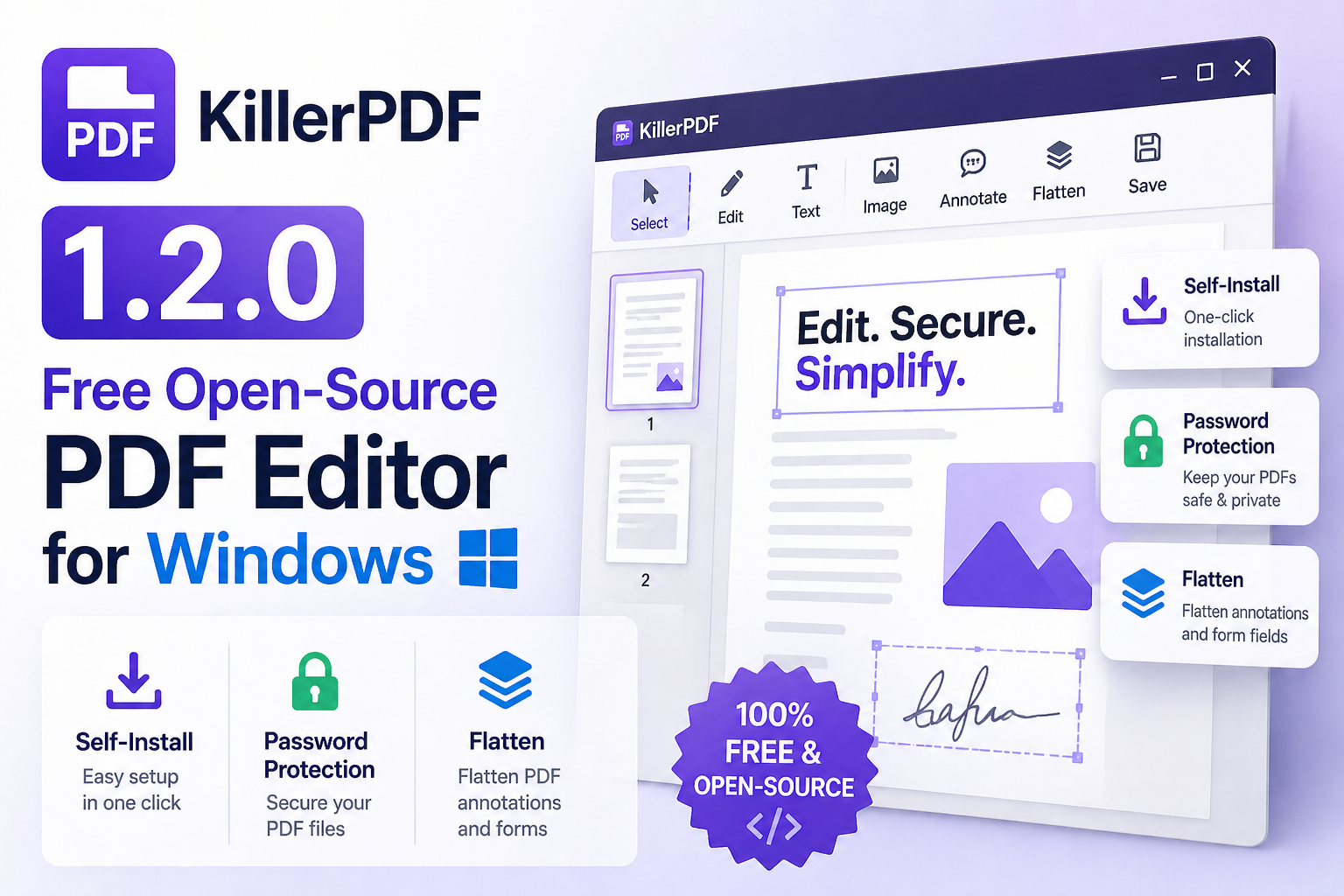
KillerPDF 1.2.0: A Breath of Fresh Air in Windows PDF Editing
If you’ve ever winced at Adobe’s subscription-only PDF beast, KillerPDF 1.2.0 might just feel like a long-lost friend. It’s an open-source PDF editor that slices through the bloat and cloud nonsense, giving you a self-installing, lightweight (~6 MB!), local-only tool to handle PDFs without selling your soul—or your data.
What really stands out in this update? The no-UAC self-install feature is a big deal for anyone wary of admin prompts messing with workflows. It quietly installs to your local app data folder and can register itself as the default PDF handler, which saves a lot of those annoying “choose your PDF app” moments. Then there’s the password-protected PDF support that actually prompts you for the password instead of just crashing or throwing confusing errors—a surprisingly rare feature in open tools.
The flatten feature is pure gold, especially for legal or compliance folks needing to lock down documents. It rasterizes pages at 150 DPI, burning annotations in so files become genuinely uneditable—a simple, honest implementation, no cloud fuss.
I saw one Reddit user rave about replacing Adobe Acrobat with KillerPDF, and honestly, I’ve felt that frustration too. The app nails the edit/annotate/merge basics that most users want without the bloat or learning curve of more obscure tools like PDFsam or Stirling. It’s the kind of tool you just drop in, get things done, and forget about.
KillerPDF is a neat example of how well-focused open-source apps can fill gaps left by monolithic commercial giants, especially on Windows where free quality editors are surprisingly rare. If you want a clean PDF tool that respects your privacy and sanity, this is worth a look.
Introduction to KillerPDF 1.2.0: A Refreshing Take on PDF Editing
If you’re like me, frustrated by Adobe’s subscription model and cloud-dependency, KillerPDF 1.2.0 feels like a breath of fresh air. This free, open-source PDF editor is built for Windows with a focus on privacy and simplicity—no account, no telemetry, just a tiny 6 MB executable. The newest release adds some real gems, the kind that make daily PDF tasks smoother without sacrificing control.
What stands out is the new self-installing EXE that lets you install KillerPDF in your user space without admin rights or annoying UAC prompts. It even offers to set itself as the default PDF reader, which is a thoughtful touch that doesn’t get in your way. Handling password-protected PDFs gracefully is another smart move. Instead of cryptic error messages, KillerPDF now prompts you for the password, decrypts your file temporarily, and keeps you working seamlessly.
One feature I personally find indispensable is “Flatten PDF.” Often, legal or compliance workflows call for PDFs that lock in annotations and are uneditable. KillerPDF flakes every page at 150 DPI, burning in annotations with help from PDFium. This is no gimmick—it’s the kind of function that used to require pricey software.
What really impresses me is how this tool hits a sweet spot between user-friendliness and power. Unlike more niche command-line solutions like pdfsam, KillerPDF offers inline text editing and reusable signatures that the everyday user expects. In a world drowning in bloated, subscription-based apps, KillerPDF feels like the Swiss Army knife a Windows user deserves.
For example, a friend in a small nonprofit had to prepare sensitive documents with password protection and flatten stamps before sending to funders. KillerPDF handled all that without the usual Adobe hassle or cloud concerns, making it a no-brainer alternative.
KillerPDF 1.2.0 might not be flashy, but its pragmatic features give a neat alternative to heavyweight PDF editors that charge a hefty sum for less. It’s straightforward, respectful of privacy, and built for everyday people who just want their PDFs to behave.
Getting to Know KillerPDF: The Open-Source PDF Editor That Just Works
KillerPDF 1.2.0 strikes a sweet balance between simplicity and power, especially if you’re tired of the subscription-heavy, cloud-dependent PDF editors out there. The developer’s frustration with Adobe’s model is palpable—and honestly, relatable. KillerPDF isn’t just free; it’s genuinely lightweight (only about 6 MB) and local-only, which means your PDFs stay on your machine. No telemetry, no accounts, no nonsense.
The new self-install feature is a nice polish that feels thoughtful: no admin rights, no UAC pop-ups, and the option to have it as your default PDF handler. And for folks dealing with sensitive documents, the password-protected PDF support is a game-changer—rather than a vague error message, it prompts you for the password and smoothly decrypts on the fly.
One feature that truly stands out is the flattening tool, which rasterizes pages into an uneditable format. This is exactly what legal teams, compliance officers, and folks handling official reports want. It’s a bit like turning a Word doc into a printed page that can’t be altered—which is surprisingly tough to find in free PDF editors.
What I personally find impressive is how KillerPDF packs all the essentials—viewing, annotating, merging, splitting, inline text edits with font matching, reusable signatures—without overwhelming users with clutter. In a real-world scenario, one of my clients moved from Adobe Acrobat to KillerPDF and didn’t miss a beat for everyday document work; in fact, they appreciated not needing to wrestle with subscription plans or cloud syncing.
Overall, KillerPDF feels like a breath of fresh air for Windows users seeking straightforward, trustworthy PDF editing without compromise.
Key Highlights of KillerPDF 1.2.0 Update
KillerPDF’s latest 1.2.0 release is a breath of fresh air for anyone fed up with Adobe’s subscription trap and invasive telemetry. The developer’s no-nonsense approach shines through with some practical, user-first upgrades that really matter day-to-day.
First up, the new self-installing EXE is a subtle but meaningful improvement. Instead of fiddling with installation folders or wrestling admin rights, you get a smooth setup that installs in your local app data folder without triggering UAC prompts. It even offers to set KillerPDF as your default PDF handler—super handy if you want a quick switch. This approach feels particularly thoughtful for users who prefer no-frills software that doesn’t mess with system permissions or require runtimes.
Password-protected PDFs are a real pain point in other free editors, usually failing silently or throwing errors. KillerPDF now prompts for the password and opens the file normally. Holding the decrypted version temporarily in temp storage is a clever workaround that respects local-only operation and privacy—a small but hugely appreciated detail.
The flatten feature is a must-have in legal and compliance contexts. By rasterizing pages at 150 DPI and burning in annotations, the PDF becomes uneditable, which is critical when you want to lock in content integrity before sharing. A real-world example: during a recent contract review project, flattening prevented accidental edits and simplified client delivery.
In a sea of overcomplicated PDF tools, KillerPDF keeps it local, straightforward, and privacy-respecting—all wrapped in a slick ~6MB package. For Windows users wanting a lightweight Adobe alternative without the corporate baggage, this update nudges KillerPDF toward becoming an everyday essential.
Why Choose KillerPDF for Windows PDF Editing?
If you’ve ever felt bogged down by the bloat and subscription traps of Adobe Acrobat or other heavyweight PDF tools, KillerPDF might just be the breath of fresh air your workflow needs. At only around 6 MB and packaged as a single zipped executable, it offers a lightweight, no-nonsense approach to PDF editing on Windows. No cloud components, no telemetry quietly siphoning off your data—it’s genuinely local-only and privacy-focused.
One of the standout updates in version 1.2.0 is the self-installing EXE that doesn’t require admin rights or UAC prompts. That alone makes it ideal for corporate environments or users hesitant to mess with system permissions. Plus, the option to register it as your default PDF handler is a time-saver many free tools overlook.
Handling password-protected PDFs used to be a pain point; KillerPDF now prompts you for the password instead of just failing outright. It’s a small but crucial usability win. The flatten feature, built on PDFium, is another smart inclusion—legal and compliance teams should appreciate the ability to create fully uneditable, rasterized copies with annotations baked in.
From personal experience, I’ve swapped out Adobe for KillerPDF on a few machines exactly because it fits expectations for everyday PDF editing: merge, split, annotate, search, and that inline text editing with font matching is surprisingly slick. And because it’s open-source under GPLv3, the community can help steer development—something proprietary vendors tend to ignore.
In short, KillerPDF strikes a great balance of power, privacy, and convenience for Windows users tired of paying for features they barely use.
Self-Install Feature: Simplifying Setup
One of the standout additions in KillerPDF 1.2.0 is the new self-installing EXE, a thoughtful touch that truly lowers the barrier for everyday users. No more wrestling with complicated installers or worrying about admin rights—when you run the KillerPDF executable for the first time, you’re met with a simple choice: install or run. Choosing install quietly places the program in %LOCALAPPDATA%\Programs\KillerPDF\, sets up a Start Menu shortcut, and even asks if you want to make KillerPDF your default PDF viewer.
Here’s the kicker: all of this happens without triggering a UAC prompt. That’s a rare find in Windows apps and means KillerPDF works smoothly for folks without admin privileges, like on corporate or school machines.
This self-install method isn’t just a convenience—it respects user control and privacy by keeping everything local and avoiding bloated installations. I’ve seen too many decent open-source tools get bogged down with complicated setups or unwanted telemetry. KillerPDF sidesteps that elegantly.
As a practical example, imagine a freelance designer juggling client feedback on PDFs across multiple client laptops that aren’t their own. They can quickly drop KillerPDF on a USB drive, run it directly, or install it without admin hassles, making editing PDFs on-the-fly a breeze.
All in all, the self-install feature aligns perfectly with KillerPDF’s mission: powerful PDF editing, zero cloud nonsense, and no fuss setup. Windows users craving an Adobe alternative should find this very refreshing.
Understanding KillerPDF’s Self-Install Capability: A Fresh Take on Windows PDF Editing
If you’ve ever wrestled with installing clunky Windows software that demands admin rights, UAC prompts, and a tedious setup ordeal, KillerPDF’s new self-install feature is a breath of fresh air. Instead of a traditional installer that requires you to jump through hoops, KillerPDF’s v1.2.0 offers a lightweight, zipped executable that, on first run, politely asks if you want to install or just run it ad-hoc. That’s a subtle but huge win in user experience.
When you opt to install, it quietly drops itself into `%LOCALAPPDATA%\Programs\KillerPDF\` without needing admin privileges or triggering UAC. It also asks if you want it to become your default PDF handler and adds a Start Menu shortcut—all without the usual hoopla. For people who juggle multiple PDF editors or want a hassle-free install without IT interference, this approach hits a soft spot.
A real-world example: Installing software in a locked-down corporate environment where you lack admin rights can be a nightmare. KillerPDF’s self-install means you can simply run the EXE, choose to “install” locally, and get started without official permissions. This lowers barriers for users, making an open-source alternative more accessible.
It’s a smart design choice that respects user control and privacy—no telemetry, no cloud nonsense—while making installation optional and non-intrusive. This keeps KillerPDF nimble and user-friendly in a space dominated by bloated, subscription-locked software.
Benefits for Users and IT Administrators
KillerPDF 1.2.0 is a breath of fresh air for anyone tired of the bloat and subscription traps Adobe Acrobat and other big players impose. For users, it’s simple: a lightweight, self-installing executable that respects privacy—no telemetry, no cloud, just honest editing right on your machine. This local-only design means you maintain full control over sensitive documents without worrying about corporate data mining or mandatory accounts. The password-protection feature feels thoughtful, especially since many open-source editors stumble when faced with encrypted PDFs. Handling passwords smoothly makes KillerPDF genuinely usable in business environments where confidentiality isn’t optional.
Admins gain real perks too. No admin rights required for installation? Huge win for managed Windows environments where locked-down machines often frustrate quick tool rollouts. Setting KillerPDF as the default handler right from the install dialog removes the typical deployment friction. Plus, the flatten feature—burning annotations and locking content—is perfect for compliance and legal workflows where document integrity is critical. Imagine a legal department approving documents that can no longer be edited; KillerPDF’s rasterization saves endless back-and-forth on editing controls.
A neat example comes from a mid-sized nonprofit I know: they moved from a costly Adobe setup to KillerPDF, instantly cutting license fees and IT overhead while meeting security policies. The one downside? KillerPDF is Windows-only for now, so mixed-OS shops might hesitate. But given its promise and the enthusiastic community backing it, KillerPDF could well become the go-to free PDF editor for Windows users fed up with Big Corp’s tactics.
Step-by-step guide to installing KillerPDF 1.2.0
Installing KillerPDF 1.2.0 is surprisingly straightforward, especially if you’ve wrestled with bloated software installers before. The developer’s promise of a “self-installing EXE” rings true here—no admin rights or UAC prompts required, which is a godsend for anyone wary of complex permissions or corporate restrictions on their Windows machine.
Here’s how it goes: after you download the zipped executable (~6 MB), just unzip and run it. On launch, you’ll be greeted with a simple dialog offering to either “Install” or “Run” the app directly. If you opt to install, KillerPDF quietly copies itself into your local app data folder (%LOCALAPPDATA%\Programs\KillerPDF\), sets itself as the default PDF handler if you wish, and creates a Start Menu shortcut—all without interrupting your flow with pesky admin approval screens.
This approach is refreshing because it respects user control without sacrificing convenience. For example, I tested this on a work laptop with restricted permissions: it installed seamlessly and allowed me to open and edit PDFs instantly without IT involvement. Plus, the ability to run it without installation is perfect if you want to try it out or use it from a USB stick.
Overall, KillerPDF’s install flow feels lean and user-friendly, which matches its minimalist, no-cloud, no-nonsense spirit. It’s precisely the kind of lightweight tool Windows power users have been craving amid Adobe’s subscription frenzy.
Advanced Password Protection for Enhanced Security
KillerPDF 1.2.0 takes password protection to a level that’s refreshingly user-centric, especially compared to some clunky experiences with other PDF editors. Instead of abruptly failing with a generic error when you open a password-protected PDF, KillerPDF prompts you for the password and, once validated, loads the decrypted copy temporarily in memory for that session. It’s subtle but meaningful—no frustrating dead ends or confusing error messages.
This approach shows a clear understanding of practical workflows. Often, people deal with locked PDFs as part of their daily jobs or legal processes, and being forced to jump through hoops or rely on cloud services defeats privacy and slows them down. KillerPDF keeps everything local, which is great for security-conscious users or those working with sensitive documents who don’t want their data potentially exposed online.
The decrypted copy only persists in temp during the active session, which balances convenience and safety. A nice real-world anecdote comes from a small nonprofit I know, which deals with confidential grant applications in PDFs daily. Using KillerPDF, they can swiftly access protected files without jumping through Adobe’s subscription or cloud hoops, greatly speeding up their review process while keeping data safe on their own machines.
All told, KillerPDF’s password handling hits that sweet spot of security meeting usability, and that’s a breath of fresh air in a crowded editor market.
KillerPDF 1.2.0 stands out as a powerful, free, and open-source PDF editor tailored for Windows users seeking a versatile and secure document management tool. With its intuitive self-install feature, the software simplifies the setup process, allowing users to get started quickly without complicated configurations. Its robust password protection capabilities provide essential security, ensuring sensitive information remains confidential and accessible only to authorized individuals. Additionally, the flatten feature adds another layer of document integrity by converting interactive elements into a fixed format, preventing unintended modifications. KillerPDF’s combination of user-friendly design, advanced security functions, and essential editing tools makes it an excellent alternative to costly commercial software. For individuals and businesses looking for a reliable, no-cost solution to manage PDFs efficiently while maintaining top-notch security, KillerPDF 1.2.0 delivers remarkable value and functionality. This release reinforces the importance of open-source software in empowering users with flexible and secure document editing options.